Data Series Builder
Description
The Data Series Builder is used to manage data series defined in the UX Component.
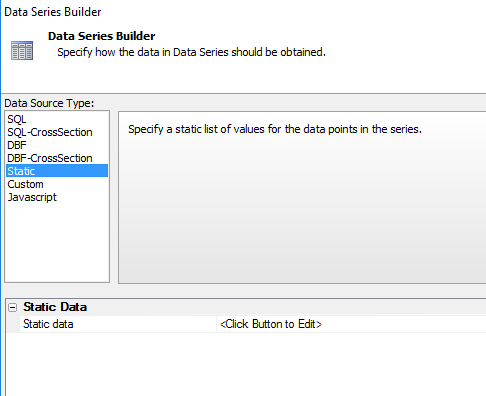
Data Source Type
The data source type menu determines what type of data the data series will be created from. The options are:
- SQL
Uses SQL data to create a data series that can be used inside a control. You will need to build a connection to the SQL data to be used.
- SQL -CrossSection
Uses SQL data to create a data series that used with different controls. "Cross sectional" means the data will be plotted from multiple fields in a single record.
- DBF
- DBF -CrossSection
- Static
Create a list or table of static data by typing in the options to appear in the data series.
- Custom
- Javascript
Creates a data series based on Javascript, making the data accessible to Javascript functions in your component.
SQL
Arguments Properties
- Data source type
Specify where the data that populates the series comes from. Choices are 'SQL' or 'DBF' - a list of values from a SQL or DBF table, 'Static' - a static list of values, 'Custom' allows you to use use custom Xbasic and Javascript functions to dynamically compute the series values, 'Javascript' - allows you to specify a Javascript function that will compute the series values.). Choices include SQL, SQL-CrossSection, DBF, DBF-CrossSection, Static, Custom, Javascript.
- Arguments
Define arguments. Arguments can be bound to page, session and cookie variables. Argument values are passed into all server-side Xbasic event handlers in the component.TIP:For 'array arguments' (for use in a SQL IN clause), the argument name must start with 'array_'.
SQL Data Source Properties
- Connection string
Connection string property.
- Method for defining SQL query
Method for defining SQL query property.
- Table name
Table name property.
- Field list
Field list property.
- Filter
Specify the filter expression. The filter expression can reference values in other controls on the Dialog. To do this, define one or more arguments, and then bind the argument value to a control value. For example, to bind the argument value to the value in the CustomerId control, set the argument value to {CustomerId}. Your filter can then reference the argument.
- Order
Order property.
- Distinct
Specify if you want unique records only.
- Record limit
Specify the maximum number of records to be retrieved in the SQL query. -1 indicates no limit.
- SQL Statement
SQL Statement property.
SQL-CrossSection
SQL Data Source Properties
The SQL-CrossSection data source type includes the following property in its SQL Data Source Properties, in addition to the properties that normally appear with the SQL data source type.
- Data extraction template
The data extraction template defines how data from multiple columns in a single record is turned into a series of values for the data series.
Using Cross Sectional SQL and DBF Types
Cross sectional data types allow you to plot data from multiple fields in a single record, rather than plotting data from a single field in multiple records. For more on this data type watch this video on cross-sectional data
DBF
DBF Data Source Properties
- Data source
Data source property.
- Filter
Specify the filter expression. The filter expression can reference values in other controls on the Dialog. To do this, define one or more arguments, and then bind the argument value to a control value. For example, to bind the argument value to the value in the CustomerId control, set the argument value to {CustomerId}. Your filter can then reference the argument.
- Order
Order property.
- Data extraction template
The data extraction template defines how data from multiple columns in a single record is turned into a series of values for the data series.
DBF-CrossSection
DBF Data Source Properties
The DBF-CrossSection data source type includes the following property in its DBF Data Source Properties, in addition to the properties that normally appear with the DBF data source type.
- Data extraction template
The data extraction template defines how data from multiple columns in a single record is turned into a series of values for the data series.
Static Data
Static Data Properties
- Static data
Static data property.
Using the Data Series Editor to Create Static Data
Custom Data
Custom Properties
- Xbasic function name
Specify the name of the Xbasic function to call to compute the series values.
- Subseries names
If your Xbasic function returns multiple data series, specify a comma delimited list of the names of each subseries. For example: sales,regionName
- Javascript function
(Optional) Specify the name of a Javascript function to call before an Ajax callback is made to refresh the series. The data returned by this Javascript function will be available to the Xbasic function, which computes the series values.
Javascript Data
Javascript
- Javascript function
Specify the name of the Javascript function that will calculate the series values.
- Subseries names
If your Javascript function returns multiple data series, specify a comma delimited list of names of each subseries. For example: sales, regionName.
Using the Javascript Type
For more on the Javascript Type watch this two part video: Part 1, Part 2.
Using a Defined Data Series Inside a Control.
See Also